This works on Windows only.
Station Master PRO can respond to physical USB and HID devices such as joysticks, game controllers, foot pedals, and programmable keyboards.
The Peripherals screen lets you connect buttons on those devices to actions inside the app, for example sending a CQ message or controlling your radio.
Opening the Peripherals Screen
Go to File and choose Peripherals. The dialog has two tabs: Devices and Mappings.
Step 1 - Devices Tab
When the screen opens it automatically scans for connected HID USB devices. Each device found is listed with its Vendor ID, Product ID, class, manufacturer name, product name, and serial number. Tick the Map checkbox next to any device you want to use. You can tick more than one device. Your selections are saved automatically.
If you connect a new device after the screen is already open, click Refresh to re-scan.
Step 2 - Mappings Tab
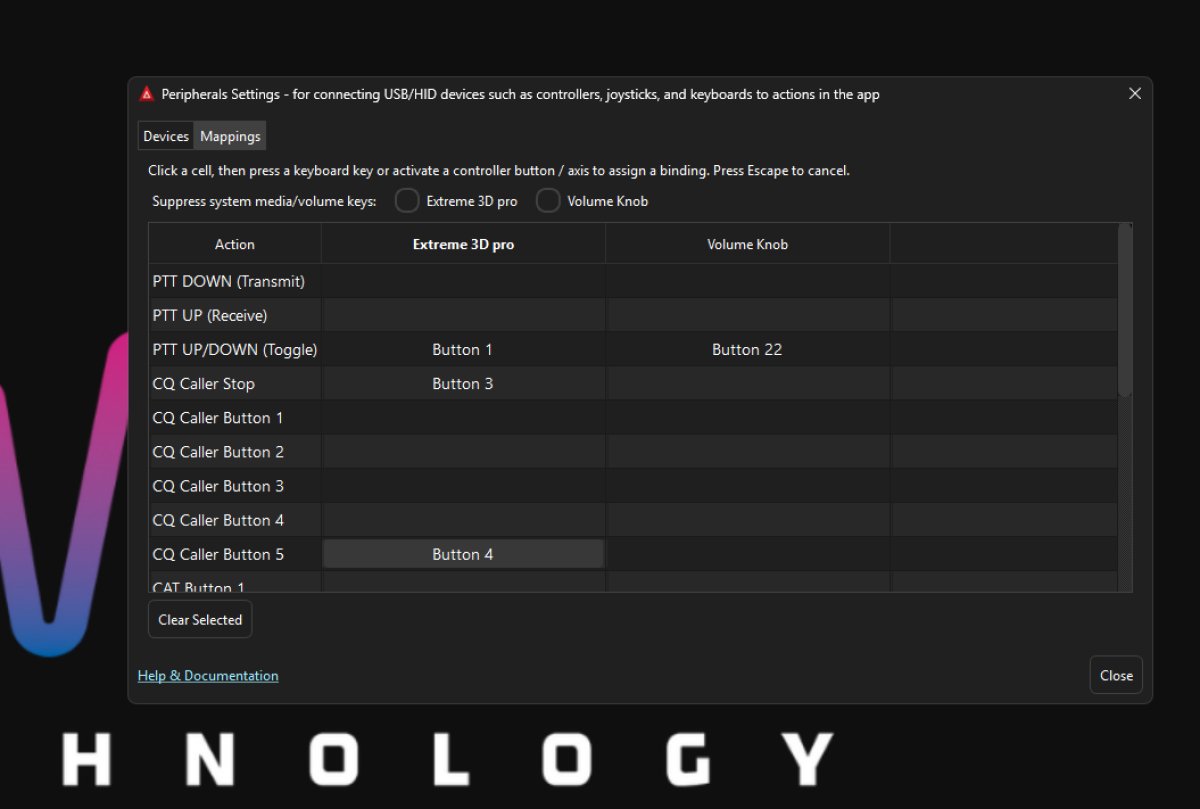
Switch to the Mappings tab. You will see a row for every action available in the app. Each device you ticked on the Devices tab gets its own column.
To assign a button or key to an action, click the cell where the action row and the device column meet. The cell will highlight and show a prompt asking you to press a key or button. Press the physical key or button on your device that you want to use. The binding is saved immediately. You can assign different buttons on different devices to the same action.
To remove a binding, click the cell to select it and then click Clear Selected.
Suppress System Media and Volume Keys
Some devices, such as volume knobs and media controllers, send their button presses to the operating system as well as to Station Master PRO. This means pressing the volume knob on your controller might also change your Windows or macOS system volume at the same time as triggering the in-app action.
At the top of the Mappings tab there is a checkbox for each mapped device labelled with the device name under the heading Suppress system media/volume keys. When you tick this checkbox for a device, Station Master PRO intercepts those media and volume events from that device before they reach the operating system. The in-app binding still fires, but the system volume or media playback is no longer affected.
Only enable this option for devices where the double-action behaviour is unwanted. Standard joysticks and game controllers do not send media key events so the checkbox has no effect on those.
Tips
You can map the same action to buttons on multiple devices at the same time, useful if you have both a keyboard and a controller you switch between.
If a binding does not appear to work, check that the device is still ticked on the Devices tab and that the correct column is mapped in the Mappings tab.