Using the CAT Buttons Widget in Station Master PRO
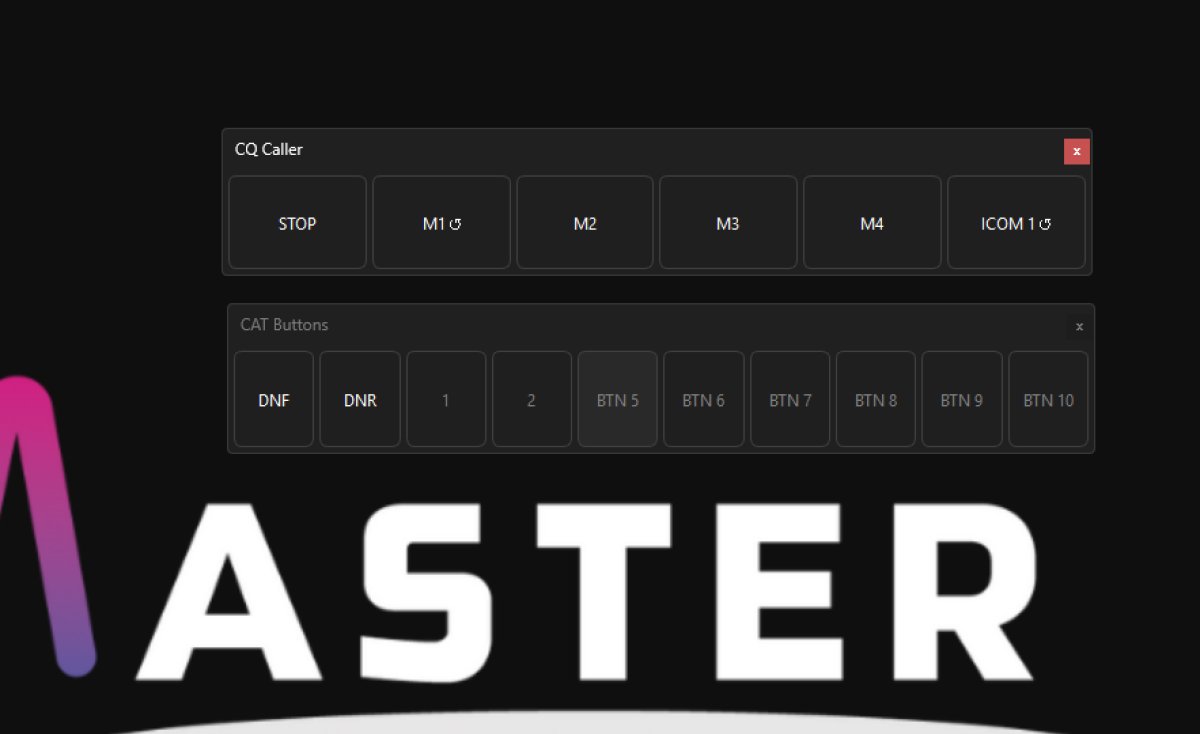
The CAT Buttons widget gives you a row of ten fully customisable buttons that send raw CAT commands directly to your radio. You can label each button whatever you like, assign any CAT command string to it, and choose how it behaves when pressed. The buttons can be clicked on screen or triggered from a USB controller or keyboard using the Peripherals mapping screen.
What Are CAT Commands
CAT stands for Computer Aided Transceiver. It is a text-based protocol that lets software control a radio, changing mode, filter, power, antenna selection, and many other settings. The exact commands vary by radio manufacturer and model. Refer to your radio's CAT manual or documentation to find the command strings you need.
The Ten Buttons
The widget shows ten buttons in a horizontal row labelled BTN 1 through BTN 10 by default. Each button is independent and can be configured with its own label, command, and behaviour type. Buttons with no command assigned appear greyed out to indicate they are not yet set up.
After pressing a button there is a brief half-second cooldown during which all buttons are temporarily disabled. This prevents accidental double-firing and gives the radio time to process the command.
Editing a Button
Right-click any button and choose Edit to open the configuration dialog. You can set the following:
Label - the text displayed on the button face.
Type - choose from Single Press, Toggle Button, or Radio Button. The available fields change depending on which type you select.
Command - the CAT command string to send when the button is activated. To send more than one command at the same time, separate them with a comma.
Configuring Button Types
Single Press sends the command once each time the button is clicked. This is the simplest type and suits one-shot actions such as switching antenna, changing mode, or setting a specific filter.
Toggle Button works like an on/off switch. The first press sends the On Command and highlights the button in green to show it is active. Pressing it again sends the Off Command and removes the highlight. You can leave the Off Command blank if your radio does not require a separate off instruction. This type is useful for functions like activating a noise blanker or enabling a narrow filter where you want a visible indicator of the current state.
Radio Button is similar to toggle but works in a group. Assign a Radio Group number from 1 to 9. Only one button within the same group number can be active at a time. Activating one button automatically deactivates any other button in the same group. This is ideal for switching between a set of mutually exclusive options such as antenna, operating mode, or band selection. Pressing an already active radio button a second time deactivates it without sending a command.
Using Buttons with USB Controllers
The ten CAT buttons can also be triggered remotely using a physical USB or HID device such as a game controller, joystick, or programmable keyboard. Use the Peripherals screen in Settings to map hardware buttons on your device to CAT Button 1 through CAT Button 10. Once mapped, pressing the physical button has exactly the same effect as clicking the on-screen button.
Tips
Keep labels short so they fit neatly on the button face.
Use toggle buttons for any function where you want a clear visual reminder that something is switched on.
Use radio buttons when you have a group of related settings where only one should be active at a time, such as selecting between multiple stored antenna configurations.
If a command is not working, double-check the exact syntax in your radio's CAT manual. A missing semicolon or incorrect letter is often the cause.