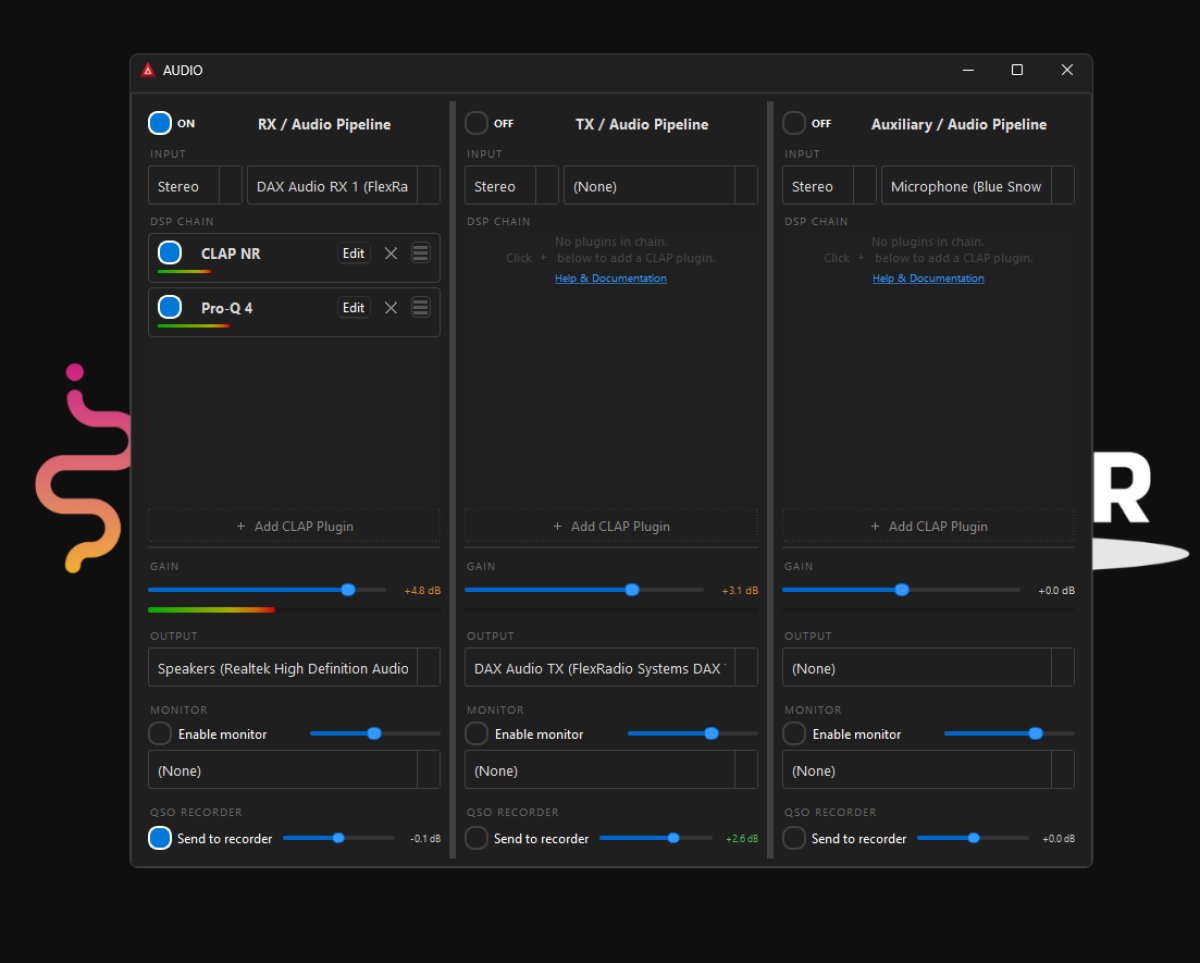
Audio Tab Overview
Mac users with a Yaesu FT-710 should go to "Audio MIDI Setup" and set the 710 to 44.1k in order for the AUDIO tab to work correctly.
The Audio tab in StationMaster allows you to route both receive (RX) and transmit (TX) audio through the application. This gives you full control over QSO recordings and enables the use of digital signal processing via CLAP audio plugins to control the EQ of your TX and RX audio separately.
CLAP is an open industry standard for audio plugins. You can use plugins developed by us or from third-party vendors.
Audio Routing Basics
All audio in StationMaster passes through the internal mixer, including both receive and transmit audio. However, using the mixer is optional. You may continue to connect your headset or microphone directly to your radio if preferred.
There is no requirement to use the StationMaster audio mixer.
Minimum Setup (RX Audio Pipeline)
To enable core features such as the Audio Visualizer, QSO Recorder, and Morse Code Decoder, you must configure the RX audio pipeline.
Click the On button at the top left of the RX column.
Set the input device to your radio's sound card, typically labeled USB Audio Codec.
This is the same device you would normally select in applications such as WSJT-X.
Once enabled, the following features will start working:
Audio Visualizer
QSO Recorder
Morse Code Decoder
This is the minimum required configuration.
Advanced Setup (TX Audio Pipeline)
For more advanced use, you can route transmit audio through StationMaster using the TX column.
Select your microphone as the input device.
Select your radio's USB Audio Codec as the output device.
This routes your microphone audio through StationMaster and into your radio.
At the bottom of the TX column, you can also enable routing to the QSO Recorder.
Gain Controls
Each pipeline (RX, TX, and Auxiliary) has its own gain controls. These allow you to adjust audio levels for:
Output to the radio
QSO recordings
Monitoring
The main gain control affects all outputs. Gain adjustments are cumulative across all controls.
RX Pipeline Behavior
The RX pipeline is automatically enabled when StationMaster starts. This ensures that features such as:
Waterfall display
CW decoder
Audio Visualizer
are immediately functional.
If you do not want to hear audio output, you can set the output device to None. This allows the pipeline to remain active without producing audible sound.
CLAP Plugins
CLAP plugins can be used to apply digital signal processing within StationMaster.
You can find CLAP plugins online by searching for "CLAP plugins". Compatibility is not guaranteed for all plugins, but many have been tested successfully.
We also provide our own CLAP plugins for use with StationMaster and other third-party applications. Some are free, while others may require a small fee.
https://clapnr.com (free)
http://autonotch.pro (premium)
https://www.fabfilter.com/products/pro-q-4-equalizer-plug-in (premium)
A virtual audio cable (VAC) will allow you to route audio between Station Master and other ham radio applications, OBS, or other streaming service. Please use the Internet to learn how to use those.
https://vb-audio.com/Cable/ (free)