Controlling Your Acom Amplifier From Station Master Pro v3.31.9 and newer
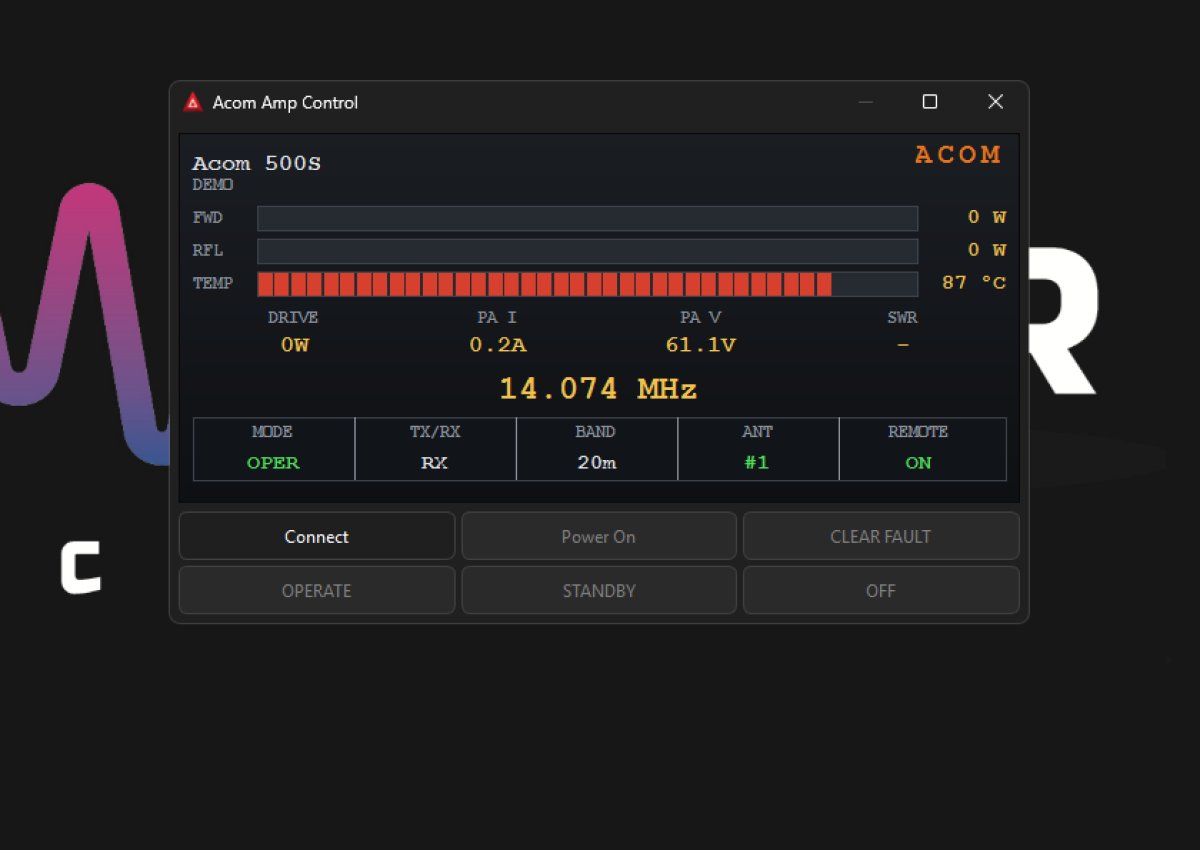
Station Master Pro now includes a built-in Acom Amplifier Controller that lets you operate and monitor your Acom solid state linear amplifier directly from the app. Instead of reaching for the front panel, you can watch the amp's live status, switch between Operate and Standby, return the amp to standby with Off, and read your forward power, reflected power, SWR, PA temperature, drive power, drain voltage and current, and operating frequency, all from a panel styled to echo the look of the Acom colour display, complete with the familiar orange ACOM branding. This feature is currently available on the beta update channel while it is being finalised, so if you do not see the Acom Amp Control panel, switch your update channel to Beta in Settings.
The controller supports the Acom solid state range: the 500S, the 600S, the 700S, the 1200S, and the 2020S. Because Acom amplifiers do not report their model over the link, you simply pick your model in Settings. Your choice sets the correct temperature calibration and the right full scale for the forward power meter, so the display reads accurately for your amp.
Connecting To Your Amp
Connecting is done over the amplifier's RS-232 remote control port, the same connection Acom uses for computer control. Run a serial cable, or a good quality USB to RS-232 adapter, from your PC to the RS-232 port on the back of the amplifier, then open the Acom Amplifier Controller settings in Station Master Pro. Choose the serial port your amp appears on, select your model, and confirm the bit rate. Acom amplifiers run at 9600, and that is the default, so in almost every case you can leave the bit rate alone. Once the port and model are set, press Connect. The amplifier streams its telemetry automatically, so within a moment the panel comes to life with live readings.
You will notice the Acom controller does not offer band or antenna buttons. This is by design. Acom amplifiers follow your radio's band automatically when connected to the transceiver over CAT, and the external Acom 04AT or 06AT tuner handles antenna tuning on its own, so there is nothing for the app to change. The controller keeps to the things you actually drive from a computer: Operate, Standby, and Off, along with full live monitoring.
A Note On Powering The Amp On
The Power On feature works a little differently from sending a normal command, so it is worth understanding. Acom amplifiers provide a remote power on facility on the RS-232 port, where two of the control lines on the connector act as power on inputs. When you press Power On, Station Master Pro asserts and holds the relevant control lines on the cable, which wakes the amplifier and then starts the telemetry stream.
For this to work, two things must be true. First, the amplifier's rear mains switch must be on, with the standby indicator lit on the front, because the remote power on only brings the amp up out of low energy standby and cannot help if the amp is switched off at the rear. Second, your cable must carry the control lines through to the amplifier. A simple data only cable that wires just the transmit, receive, and ground pins will pass status and commands perfectly well, but it will not be able to wake the amp, because the power on lines are not connected. If Power On does nothing, this is the most likely reason, and you can always switch the amp on at the front panel and then press Connect to monitor and control it as normal.
To keep things safe, connecting on its own never powers the amp on. The amplifier only wakes when you deliberately press Power On. If you would like the app to return the amp to low energy standby when you finish, tick Power off on disconnect in Settings, and disconnecting will send Off and release the power on lines for you. Once your cable and settings are sorted, powering up, operating, and monitoring your Acom amplifier is just a click away inside Station Master Pro.